
LabElite DeCapper Labware Scripts
The Hamilton LabElite DeCapper is an automated capping and decapping device that processes sample storage tubes in 24-, 48-, and 96-format racks. Because it works with many tube types, cap styles, and manufacturers, each piece of labware has its own characteristics such as tube dimensions, thread type, torque requirements, and rack density. The Labware Script is a set of commands and operation protocols that configures the DeCapper for the specific labware being used, translating those physical details into the operating instructions the device needs to run correctly and consistently.
Why the Labware Script Matters
For scientists and lab technicians, the Labware Script is what makes the DeCapper truly plug-and-play across the variety of tubes and racks in a real lab. Here is why it matters:
- Accuracy and consistency. The script encodes the correct torque, travel, and positioning parameters for each labware type, so every tube is capped or decapped the same way, run after run. This reduces the variability that can come from manual handling.
- Sample integrity. Incorrect torque or positioning can damage caps, cross-contaminate samples, or leave tubes improperly sealed. By configuring the device precisely for the labware in use, the script helps protect valuable or irreplaceable samples.
- Time savings. Instead of manually tuning the device for each new rack or tube type, a scientist can load the matching Labware Script and begin processing. This is especially valuable in high-throughput environments where labware changes frequently.
- Broad labware support. Because scripts can be created for different tubes, vials, and racks, a single DeCapper can serve a diverse labware inventory without the need for separate devices or lengthy reconfiguration.
- Reproducibility and traceability. Using a defined script means the same operating parameters are applied every time, which supports reproducible workflows and easier troubleshooting when issues arise.
Download and Installation Instructions
Please select your labware script file and save the file to a flash drive. Unzip the first file, but keep all other files zipped and names as is.
Go to menu and select "Update"

The following window will appear:
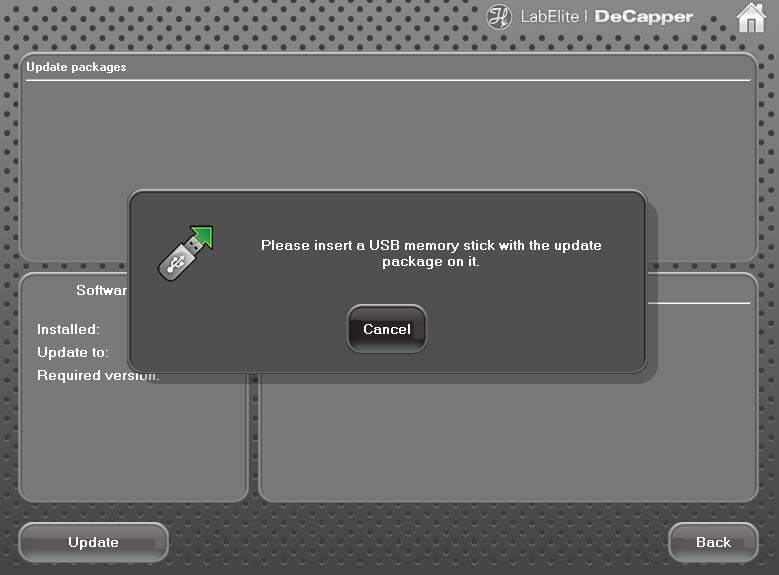
Insert the prepared USB memory stick to your device with the update files saved in the top level (no subfolders).
The available software updates will be visible in the Section "Update packages"
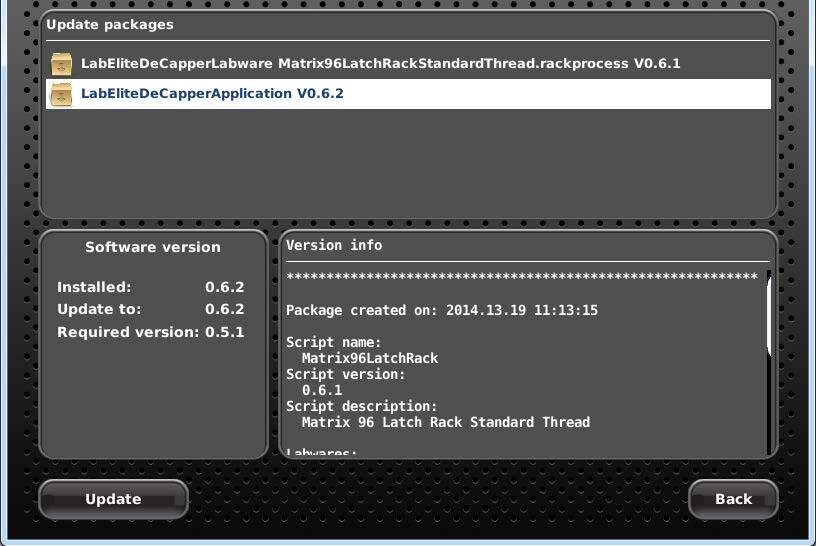
- Select the required update file.
- Press “update” and “confirm”.
- In some cases the device might require a reboot.
- Repeat steps 3- 4 until all required updates are installed in the correct succession.